- You can install 3rd party apps without "jailbreaking", "rooting" or use "custom ROM" your device ?
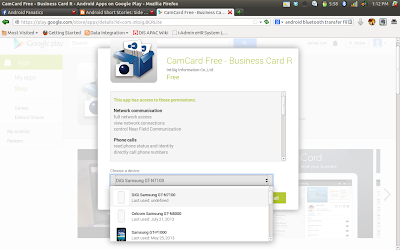
- You can install apps into your device remotely from http://play.google.com ?

Install from http://play.google.com - Android is a platform that runs on many devices (created by many companies) and not a single device like iPhone ?
- Hackers hacking your smart device is of better value than hacking your PC?
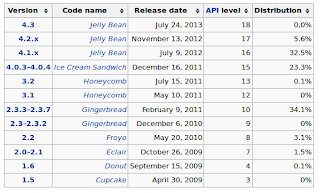
- Android versions are based on dessert name ?

Android versions and Code Name - Android is an Open Platform which is free to license ? That's why many cheap devices are released with Android within ?
- A bad Android experience (laggy, inresponsive) are usually due to what device we bought and how we handle the device ?
- "Rooting" and "Custom ROM" are 2 different things altogether ?
- The moment you prepare your device to enable "Custom ROM" loading, your device would risk losing it's warranty ?
- It is not easy to "brick" your device nowadays
Thursday, July 25, 2013
Android: Do You Know ?
Side loading Android Apps
Pros and Cons...
Side loading apps is one way to install applications without going through the official Google Play store. You may think it's a way to pirate apps (which is actually true) but because android is an open source systems, not all Android device (like OUYA) would actually have access to Google Play, therefore the only way to install APKs is to side load them.
While installing 3rd party apps (or pirating them) seems to be a way to save you a few bucks but always remember, 3rd party apps are prone to trojans and viruses. If you side load an app which contains malicious codes within, you're on your own - and need me to explain more that your smart device posses more information about you than your PC ?
How to do it ?
Accepting the risks ? Okay, so there are various different ways to side load apps, be it by using the cloud (i.e. DropBox), SDCard or even 3rd party market apps (i.e. BlackMart Alpha or Aptoide). But in all these different ways, one thing is common - you would need to enable an option in your device to start the side loading process.
Firstly, you would need to go into your smart device settings and look into the security section. Scroll down and locate an option called "Unknown Sources" and check it. This would allow any 3rd party APKs from anywhere in your device to be installed.
Now that your device is "vulnerable", you can start installing APKs into it. Below are some different easy methods to side load.
1) Using DropBox (Works with OUYA)
a) Install DropBox into your device and log on to your account
b) From your desktop, locate and save the APK into your DropBox account.
c) Open DropBox in your device, locate and access the APK
2) Directly, using cable or SDCard
a) Copy or save the APK into your device (using cable, device browser or via SDCard)
b) Access the APK in your device via a file manager (i.e. ES File Manager)
3) Using Aptoide or BlackMart Alpha
a) Just find these 2 apps using your device browser and install it
b) Follow the app instructions
Remember, irregardless which method you use, side loading is risky and prone to malicious attack. Moreover, the side loaded apps cannot be updated via the official Google Play store (as far as I know). Good luck !
Saturday, June 8, 2013
Logitect Bluetooth Keyboard for Tablet (Android 3.0++)
Ever since I sold off my ASUS Transformer TF101 and bought the Galaxy Note 10.1, I'd figured that I had gained the ability to precision input (like write, draw or crop) but lost the ability to perform fast and course inputs like typing.
Feeling the missing piece as I like to express and write documentations, my hunt for a keyboard enseus. Something that is supposed to be practical, reliable, trustable and most importantly - does not burden in terms of battery life and erganomics. I had browsed through quite a bit of different keyboards (China unbranded, branded ones, official from Samsung ones) but ultimately I had come to rest onto this selection of Keyboard for my tablet - Logitech Tablet Keyboard for Android 3.0+
Not all bluetooth keyboards are the same
Why Logitech named it "for Android" ? It's basically there are some buttons on the keyboard which would only makes sense when it's being used on the Android operating system (For example: The HOME and BACK button). Given on an iOS or Windows Mobile device, these buttons may had been deemed useless and would need to be remap to something else as not to waste it being there on the layout
A case and a stand
The keyboard case is meant to stow the keyboard away when not being used but it can also double up as a stand for the tablet. This smart design works for those who does not have a proper standing case which allows their smart device to be rested on a landscape or portrait orientation. Moreover, if you ever have a device with a large thick case, the bottom hinge can be also be adjusted to support it. SMART !
Keyboard weight and size
The keyboard weight is very important for owners as it need to be light enough for owners to carry around yet heavy enough as to stay firm on the table for typing purpose. For me, it leans towards the heavy side of the story. It's almost 400grams (with the case) and if lug along with your tablet, it would had been more than 1kg in total weight. Luckily we wont be using this keyboard without a base supporting at the bottom of it (or would you ?)
Battery life
The keyboard runs on 4 Standard AAA batteries - comes installed within. I heard that these 4 little guys would last you 5 to 6 months on an average use but I can't really vouch for that at the moment. Then again, I have another Logitech keyboard at home which uses the wireless techology and the battery life seems like forever - based on my use
Price
I got mine at RM165, If you go to the shops in Low Yat, you'll probably set back to around RM190 or more. My advise, go lelong.com.my and check it out but be warned about the warranty though
Cons
What I don't like about this keyboard is that it needs to work along with your default Android keyboard. If you're like me using a Samsung Tablet, your default keyboard would be the Samsung one, some of the key mappings aren't accurate when it's maps back to Samsung soft keyboard. Furthermore, if Logitech would be so kind as to release one keyboard software to remap the keys - I believe this would make this keyboard perfect (At least in my context)
Conclusion
Now for a price tag of RM165 (for me), I would say this is worth the investment, moreover, this keyboard is not necessary being used for tablets - you can even use it for your smartphones. Admittedly I am never a virtual keyboard guy and swyping through the large 10 inch screen had not been futile for me, therefore this keyboard would had helped quite a lot. Oh and one final thing, since I'm using it on my Galaxy Note 10.1, it means that it works for Android 4.1.2 !
http://www.logitech.com/en-us/product/tablet-keyboard-android-win8-rt?crid=1242
Tablet, Accessories, Keyboard,
Wednesday, May 29, 2013
Size Does Matters ?
Fast forward a bit then we go into an era of miniature phones, manufacturers made mobile devices smaller and smaller with the caption "Because I can" and the consumers ended up buying them quoting "Because I can afford...". I'm sure you know who you are.
But in today's world where the mobile industry had flourished and smartphones (or dare I say, mobile computing) is all around us. There are still choices when it comes to the size of the device - it all depends on what you need to do with it and what you want it to do for you.
Recently, I bought a Samsung Galaxy Note 10.1 with the sole reason that I would need that for work. I actually had made a long assessment before jumping into the buying decision for I'm afraid that it would later become a white elephant sitting somewhere in the house. Moreover, I do have my company's laptop (15 inch) running on UBUNTU and my smartphone of (5.5 inch) running on Android, does a gigantic 10.1 incher fits into my work or personal life ? Here are some thoughts:-
Size DOES matters !
When I made the decision to purchase my Note 2, I was basically planning to retire my ASUS Transformer TF101 (10.1 inch tablet) as my work gadget. I thought that the 5.5 inch device would suffice to take notes during meetings and draw diagrams (Yeah, I use the stylus a lot) and easy to carry around as a communication device.
But I soon discovered that I am not able to write many things in that 5.5 inch of real estate, moreover taking notes in meetings are more of scribbling than writing nicely on the canvas. When it comes to drawing, the autoshape function of S-Note does comes in handy but it's also not flawless (You can't just replace Microsoft VISIO with that).
After a few months of trying and trying, I soon discovered that I need something that is larger in size, a bigger canvas is good but then again, how big is too big ?
How big is too big ?
When I purchase the Note 10.1, the Note 8 is already out in the Malaysian market. I was actually wondering if I should jump into the 8 incher game play instead of choosing the largest screen available in our market. But then again, there's this thought that comes into me, "What am I going to use to interact with it ? Finger or Stylus ? And if using stylus, doesn't it makes more sense to have a larger canvas to write or draw ?"
I can't convince myself enough that I need something that is big because of the way I interact with it. It makes sense if you're using an 7 or 8 inch tablet with a finger and not expecting to draw, paint or write onto it. Nexus 7, iPad Mini makes sense, but Note 8 ? I dunno, I believe the same question I would post back to you is, "How frequent do you use your stylus ?"
Stylus VS Keyboard
My prior ASUS Transformer TF101 is one of the best device I had owned. If only ASUS had came out with a device this year with the same form factor (Attached keyboard with battery and USB) and more powerful processor upgrade, I would had chosen ASUS without a blink. Let's face it, physical Keyboard had been around and will always be around because of us (as humans) we respond well to touches. Typing on a flat screen just can't give you the feel of typing the correct letters effectively.
But what if it comes to writing ? Unless if you're born with doctor's writing, then perhaps you better stick to nothing except keyboard. The stylus is still one of the best tool you can use for various different purposes. Are you born in those days when computers are scarce ? Going to school with a box full of pencils and erasers ? Yes, a stylus works very much like your pencil, it provides the capability to write, paint, editing, croping and such. A mouse just can't cut into that kind of precision. Buying a tablet and to fully use it would give you the sense of satisfaction that it's worth your money.
Moreover I have a kid now who is learning how to write and draw. Bringing papers and pencils to restaurant is a mistake. Why not let him practice on the tablet itself ?
Conclusion
So in a nutshell, what is your next device solely depends on what you wish to do with it and what kind of experience you wish to gain from it. Here are some thoughts:-
Small size device (5 inch and below)
Pros:
1) Nice to pocket, sleek and stylish (?)
Cons:
1) Precision is required to work with it, especially those with fat fingers (Careful when driving !)
2) May lack of battery life compared with the larger guys
Medium size device (5 to 8 inch)
Pros:
1) Larger canvas to work with (better for those who have ailing eyesight)
2) May offer better battery life
3) Better for videos
Cons:
1) May not be pocket-able (Prone to snatch thieves... heh)
2) Awkward as a communication device (Imagine your 8 inch tablet suddenly receives a phone call and you forgot your headset)
Large size device (Above 8 inch)
1) Best for videos
2) Largest available canvas for every sort of feature possible (i.e. Multiple multitasking windows)
Cons:
*As with Medium size device
1) Heavy as
Sunday, August 7, 2011
A good ROM and Kernel combination for your Galaxy S
Disclaimer: This combination is what I had found best suited on my device for my personal usage. It may or may not be the best for you. Kernels and ROMs are always being updated so as usual, it is only correct as per the time of my publishing.
The combination which works for me (and having my O2Jam Analog works flawlessly is as below...
ROM: Juwe Smart Edition v5.2 (http://forum.xda-developers.com/showthread.php?t=964672) - Install the WIPE version, backup using Titanium first ok
Kernel: Semaphore v1.5.0 (http://forum.xda-developers.com/showthread.php?t=1112908) - Overwrite the Kernel.
Tweaks (Use the app called TWEAKS once installed Juwe)
i) Enable RAM: Min-Free
ii) Disable VM: Swappiness
iii) Disable VM: Dirty Read
iv) Enable Touchscreen: Sensitivity
For launcher, I would recommend to get Go Launcher EX. Simply because all the required widgets are all running behing Go Launcher itself - the system need not allocate additional memory for different apps from different vendors.
My test of sensitivity, microlags and memory is all from the game O2Jam Analog. This music-sync game requires certain levels of precision and any lag would render the music goes out of sync and throws your game off altogether. It's in Korean though - go google over it if you're interested.
Tuesday, July 12, 2011
Screen and windscreen protector
Because the solution is not corrosive to plastic (at least what am I seeing now), I had also applied it over my Samsung Galaxy S over the screen protector itself ! The results are still remarkable. There is certainly less fingerprint smudges as well as a smoother screen to the touch. The only part in which you need to be aware of is the chemical that had been laced on the screen itself. Although there is no chemical reactions on my finger but as you apply over the phone's screen - be aware that you will also stick the phone onto your face when you receive calls. I certainly would not be responsible on any skin reactions on different individuals towards chemicals like alcohol or methanol. Oh, and over the same point - try not to burn your device, it's more flammable after application.
Because one application is never permanent, you may need to reapply the same solution again after that - perhaps in a few weeks or so. Finally if you had purchased the same solution and it is not working or not as desirable results for you, chill out ! You can still use it on your car right ?
Wednesday, June 8, 2011
Me and my Transformer...
The Transformer TF101 is certainly not a light device to carry all around. Weighing more than 1kg with the dock, it's not a lightweight device where you would expect it to drop, chip, broken or fail. With the dock as a protection of the screen, once you pick it up feel the "snake-skin" surface of the device, you know it's build for sturdy and meant to last. To pick it up and carry it around in a sling bag as compared to my clumsy notebook, I was quite relieved and filled with thankfulness that I am using this instead of the regular laptop.
The system is not perfect, it's not as smooth like a hot knife across butter when scrolling the main homescreen. I gathered that it was due to the fact that the Android Honeycomb OS is still not harnessing the graphics processor capability of the Tegra chip devices (Which is also understood because the OS can be made for different processors and CPU right ?). So if anyone would want to compare scrolling a whole bunch of app icons (like OS of the fruit company *cough* *cough*) against a screen with a whole bunch of widgets, I'll put my hats down for the app icons instead.
Being in an android platform does have it's own advantages as well. You basically change whatever you do not like by replacing it with a newer or better one. For example, I had changed my homescreen launcher, soft keyboard and even the base OS to something more effective within 2 days of usage. Then there is of course this market problem which is hitting many tablet users in Malaysia due to Google's fault on the application filtering but you can actually overcome it by tweaking the market application a little with instructions on my earlier posts. So in a nutshell, you're not in a scenario where you need to wait for the manufacturer company for updates and such - if there's a will, a problem, someone from somewhere would have a way to overcome it. Hell it's an Open OS, someone must had (or going to) create something to solve similar problem like yours !
Many would had asked me about the battery life of this device but I ensure you, it's not really easy to finish all the juice within the device in a day's run. Take it that you start your day at 9am and your device and dock is fully charged. If you're not playing games all the time during your working hours, you would have been turning the device on and off as you move from meetings to lunch and such. So by the end of the day, you may be switching on the device for 5 hours tops when drive back home. At home I'm sure you have around 3 to 4 hours of playing with the device before you go to sleep... so in total, let's call it 9 hours. Because the device is not like the standard android phone where it polls the mobile network for notifications, the battery drain is pretty linear as opposed to usage. Although the marketed specification of the dock and device combination is 16 hours of battery usage, but I'm sure by the 10th hour of usage you should be able to connect it to a plug and continue working.
So what applications did I used the most in my device ? Firstly I had tried the Polaris Office. It's not perfect but it certainly had did the job in a few occassions. I had yet to do my presentations using the device but I had managed to edit my PowerPoint slide using it. If you're ranting that it's not easy to learn, try picking up another tool called "Symphony" for Windows platform... For mails, I am merging my Yahoo and Google in to a universal mailbox for ease of management and as for remote desktop, I am using an app from market called "Remote Desktop" (what a surprise !). Basically it works with my Win7 desktop at home or in office. While in Remote Desktop you may not find it easy to handle doubleclicks and click-drag actions but well, I guess there is no other means of providing those because we are talking about 2 different operating systems.
For video playback, it's not as exciting as allowing you to cache up to 6GB of your HD videos in MKV to be played natively without problems. It shutters because the application cannot handle caching effectively due to lack of on board memory. Playing a medium size file around 600mb is still acceptable but wait ! I would also suggest you to use other players instead of the built in one instead. Try the free app called "MoboPlayer" which can handle hardware decoding - it works flawlessly for me. Another advantage is the USB ports which can read most storage device you thrown onto it. Videos stored in harddisk can be read seemlessly with auto-mounting as soon as you plug it in.
For games, all the "Birds" you install can be run seemlessly together with all the other HD games available in the market. There is no video lag in any of the HD or non HD games I had tried. I had also installed a Capcom CPS2 emulator to test the device but all seem to run well without complain. Perhaps it's the way this guy is telling me "Is that all you got ? Bring it on ! Roll out !"
Finally it's the user experience that draws me into a different dimension is what I really hope that every single notebook would give me that. Pinch zoom, scroll, taps on the screen while forgetting about having a mouse at all is something really really different experience. Yeah, although the iPad can do that but imagine having it with a keyboard whilst working on it like a netbook ? I know it's possible with a 3rd party (and expensive) BT keyboard or even some more innovative keyboards which can stand your iPad and dock through the port but think about it - the ipad can only be dock vertically and not horizontally, the stability of the device at the dock as you touch the screen to interact with objects within is not "more than meets the eye"...
So in conclusion, the ASUS TF101 is not a perfect device but also not a device to be looked down upon when comparing with other tablet offerings in the market. It's a workhorse as well as a leisure device. As usual, I wont be against anyone who wish to buy tablets for other means - like just plain e-book reading, surfing or playing games. But if you're serious about using it like me - like blogging this whole thing in half an hour at my bed. Consider this device for something more practical and don't kid yourself over some keyboard that you can't feel the buttons. I'm off to transform this Netbook back to a tablet now - I wanna play Angry Birds Rio.