A few of my friend had complained that the Samsung Galaxy S they bought had short battery lifespan. While I am not defending Samsung about their hardware but there are some facts about smartphone that you need to be aware of...
1) Your phone access the Internet most of the time. Having 3g network never helps in saving battery life. Whenever possible, use wifi or drop to edge for your idle time and only switch to 3g when you need the speed for streaming or surfing. If you find switching from EDGE to 3G is cumbersome, go download a widget to facilitate it.
2) Samsung Galaxy S have the most of vibrant and bright screen to date compared with other devices out there. Such features does comes with a price though; battery life. If you do not need the maximum brightness to show off or need to bump up the brightness due to poor visibility on a sunny day, switch to auto or the minimum brightness instead.
3) In line with point 1 and 2, you also need to understand how you use your phone. Do you chat over the net all the time? Do you surf all the time? Do you play games all the time? Do you watch movie all the time? If you do all of the above then you need to learn how to conserve power. If you watch movie with a bluetooth headset while your map software polling your gps behind, it's fully understand that your battery will die faster. So learn about the software before you run or install them. Disable each hardware functionality when not in use, trust me; it helps...
To learn what hardware component consume your power the most, go to SETTINGS -> ABOUT PHONE -> BATTERY USAGE to see the stats. A free software called Juice Defender would help but may lag your phone as it switches off your data during screen off and on again when you gets off from sleep. Good luck !
Wednesday, September 29, 2010

Swap memory

Earlier I was responding to XDA forum about the use of swap memory on my device. I think it's good that I share it with the rest as well.
Swap memory is not really the memory that comes manufactured or "hardwired" to your device. It's basically some disk space (maybe your sdcard) that is prepared and allocated for "extended memory" usage. When "extended memory" term is in concern, it doesn't mean that it will adds up to your total memory of your device, what it does is that it will be a temporary storage to support your total memory that is running on your device with "swapping" the memory in and out as needed. Think of the total memory your device can support is a jug, how much memory is being used is the water within the jug itself. Imagine now you are given a glass, surely you can hold more water in the jug by offsetting some water from the jug to the glass itself right ?
In android terms, you can consider this example;
You run 5 applications (Namely A,B,C,D,E in sequence) and closes all of them using the BACK button and get back to your HOME screen. Now you wish to launch back the 1st application (A) that was closed earlier, what will happen ?
Scenario without swap:
When you use the BACK button to quit an application, this doesn't mean that the application had been terminated. Most of the time, it still resides within the memory of the device in an idle state until Android needs the additional juice to run other applications and which it will then terminate any applications that had been sitting idle for too long and claim the memory used. In the scenario above, if the applications B,C,D,E needs a lot of memory to function, application A would usually be terminated already. This causes the relaunch of application A would be from the disk itself. Depending on how much data needs to load, sometimes starting an application from scratch is quite painfully slow (i.e. Launcher with many widgets)
Scenario with swap:
Setting swap tells Android that there is a part of extended memory on the disk in which it can use to "swap out" data from the memory. This causes more applications can be launched without getting terminated that early. In the above scenario, application A may still resides in the swap memory and Android would just have to "swap in" the data from the disk back to memory and continue running it. This may help in terms of performance because the application doesn't need to start from scratch.
Sounds useful ? Well, you also need to understand that using SDCard as a swap area would degrade the life of your SDCard. Your SDCard have a limited amount of write cycles and swapping memory to/from SDCard would deplete the amount faster than your standard usage without swap. I reckoned that SDCards are cheap and by the time it starts to die on me, I'm sure I ought to be buying a higher capacity SDCard with higher speed to be used as swap. But at the end, the choice is up to you...
Another drawbacks is that swapping would require a bit of resource. Accessing SDCards requires power and swapping data would require CPU cycles. If your test shows that the performance benefit/gain is justifiable, then I'm sure these factors would not be much of a problem for you.
To use swap on your device, download an application called SWAPPER2 from market. It's free and easy to use and setup. You will also need to set the swappiness (how frequent to swap data) from the application as to fine tune your device in it's new environment. I am using Swappiness 20 but you can start from 10 and see if it helps or not, if it doesn't move on to a higher number until you're happy about it.
Oh btw, did I tell you that you need ROOT in order to use this application ?
Tuesday, September 28, 2010
What do you need to know when you're in an Android camp ?
There are some basic functionalities that you need to know when you had just moved to an Android camp. These functionalities are similar to all Android phones (be it manufactured by HTC, Sony Ericsson, Samsung or Motorola)
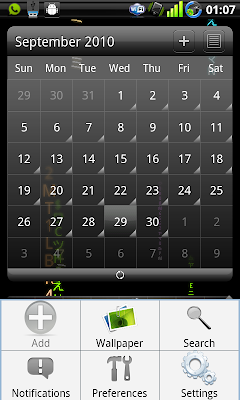
1) Menu button - Each android phone would have at least a menu button. There are some applications that does not look like it have much to offer in terms of configuration but wait ! Try pressing the menu button for a change. You may never know what you'll find there

2) Pinch, Swipe, Tap and Tap hold - There are various ways you can use the touch screen. Besides the standard way of interaction like Pinch, Swipe and Tap, remember that there is also a Tap hold function. Many of a times people were complaining that they can't change the standard screen keyboard. It's basically they never know how to tap-hold over at an entry box
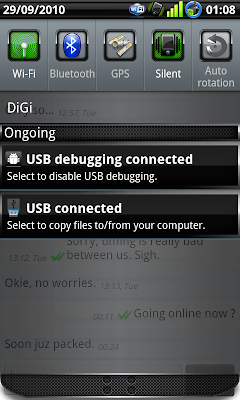
3) Notification/Status bar - The notification or status bar on top can be slide down to uncover more information about your device. If you have an SMS arrived, you can slide it down the notification bar on top to access your SMS directly without having to launch the SMS application from the application menu.
4) Widgets - If anyone tells you that the iPhone UI is the best, show them your widgets ! Tap hold on any screen that has an empty area and select a widget to be placed there. Widgets are information panels that holds information about anything you can think of - SMS, Twitter, Facebook... etc. There are also widgets that acts as a launcher to launch applications, search contents on your phone and/or internet, access voice command and such. You basically need to install the main application before you can use the widgets that comes with it (duh)
5) Back button - Android is similar to iPhone as it has a BACK button that is similar to the CLOSE button in iPhone. But wait, we are talking about a BACK button; and not a CLOSE button. This is how BACK button works; For example, If you had accessed a few levels of menus by tapping into each menu selection, the BACK button will back you up one level. But if you're at the TOP menu already, the BACK button will minimize/close the application (depending how was the application written). Some applications offers BACK button as to minimize the application while the QUIT function is offered as part of the MENU selection

6) Application defaults - When you have more than one type of the same application (i.e. 2 BROWSERS - Dolphin Browser and the Standard Browser) installed in the device. Android OS will ask you which browser to use when you click on a hyperlink. You can also set which browser to be the default one to use or reset it via SETTINGS -> APPLICATIONS -> MANAGE APPLICATIONS

7) Installing and changing Input Method (IME) - You can install many other keyboards to be used in your device. But before you can use the installed keyboard, go into SETTINGS -> LOCALE AND TEXT and make sure the IME you are interested is checked. From there only you are able to choose which IME to use from the TAP-HOLD menu over an entry box
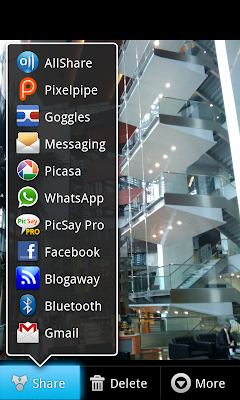
8) CONTENT SHARING - This is perhaps why I had chosen Android as my platform. Most contents you have in your phone can be shared to other applications seemlessly. Imagine you had capture a picture and wish to edit it before posting to Facebook. First you can use a camera to capture the picture, before you quit the camera, access the menu and select SHARE to your editing tool (like PicSay Pro), after editing you can next SHARE to Facebook. You only need each of these applications to be installed in order to share the content across, the list of applications that can perform the SHARING would be available automatically

9) Accounts and Sync - Another feature why I like about Android. You can setup your device to Sync with multiple accounts over the internet. For instance, I can download all my contacts from GMail and then merge it with my Facebook friends and finally merge all of it with my Twitter or WhatsApp friends. The advantage of doing so is that you would have a universal area about all your friends and contacts. You can view their contact information, facebook status or facebook pictures from a single point. This feature is only available since version 2.1 of Android though. Some phones like the Galaxy would go to the extend of showing your friend's facebook/twitter status when the phone rings. Pretty helpful as you would know if the upcoming call is going to be somewhat nasty or not. To access or setup more accounts for synchronization, go SETTINGS -> ACCOUNTS AND SYNC
10) Replaceable components - Almost everything in the Android OS can be replaced. Your keyboard can be replaced, your main screen (we call it launcher), your SMS software, your dialer, your GMail client, standard web browser... etc. If you're not happy about the SMS interface, change it ! Do not limit yourself over a user interface that you do not like ! Here are some apps to look into when you're accessing the market:-
Launcher - Launcher Pro, ADW Launcher
Browser - Dolphin Browser, SkyFire Browser
SMS Management - Handcent SMS
Mail Client - SEVEN*
MSN/Yahoo/Chat client - eBuddy, Trillian*
Picture editing - PicSay Pro
Camera application - Camera Pro, Fast Camera, Snap Photo Pro
Alarm - Gentle Alarm
Live Wallpapers - Digital Wall LW, Wakka Wallpaper, aSpiritBomb LW
Keyboard - Better Keyboard, Inserty, SwiftKey, WiiRemoteControl (Yeah, use your Wii to control your Android device)
Backup apps - Titanium Backup, MyBackup Pro
*Beta application, not available in market - need to search through internet
These 10 points are a good start for any new Android users. I hope you'll start exploring and begin to enjoy using your device. Overall, you own the device not the other way round. If you're not happy with it, just change it until you like it ! Good luck with your first Android phone ! :)
Monday, September 27, 2010
Funny touch screen

I have various friends who is a parent and recently bought themselves an android phone. This application is particularly useful for those of you who wish to offer your device for your children to learn about numbers, sequence, motor skills and simple objects. Whether your child is a baby who just started to learn to grasp objects or a toddler, the application have different levels of difficulty to cater for the different levels of intelligence your child currently is.
A highly recommended application. You can download it free from market!
Thursday, September 9, 2010
How to fix broken voice recognition button on your IME (Android 2.1)
I had another IME (Input Method) called Better Keyboard that has a voice button. The problem is that everytime I try to use the voice function, it just fails and gave me some messages about voice features not available. I did a bit of research and found that I need to install this apk file in order to make it work - Voice Search for your Android 2.1. The thing is, market no longer host this file and hence you need to get it from somewhere out there.
Download link: http://bit.ly/cawMCG
Original post from here
Download link: http://bit.ly/cawMCG
Original post from here
Monday, September 6, 2010
Overclock and undervolt kernel for your SGS

There is a kernel in which you can control the voltage of your device. This feature is called undervolt - where you can control lesser voltage to your device CPU as to conserve more battery while maintaining the same performance of the standard voltage.
Another feature of this kernel is to overclock your device. Making your CPU clock run faster but of course consuming more battery power. The mix of undervolt and overclock would eventually unleased your device hidden potential going beyond 1ghz.
Here's the link on how to do it...
Remember to download the application that allows you to tweak the voltage. Good luck !
Friday, September 3, 2010
Rooting your Galaxy S
The process of "rooting" gives you the highest level of access to your device. This is particularly useful if you wish to modify files that is within the device which is deemed "restricted". With the highest level of access, you now can make use of applications that can:-
- Change your sim card region code and download market apps that is only available to other parts of the world
- Increase performance of your device using swap memory
- Perform low level backup of applications and data.
- Tweak your device memory parameter
- etc..
Apart from gaining the "root access", you will also be installing 2 other softwares together with it.
Disclaimer:-

Disclaimer:-
- You must understand that rooting your device would (again) void your warranty with Samsung. However you can flash another official ROM and making it unroot again. There are also ways to unroot without having to flash your device but that wont be covered in my guide here.
- The links and methods provided by this guide is not forever permanent. It is available as of the time this blog is being published
Steps:-
- Download the zip file from here
- Rename the file to "update.zip"
- Copy the file into your SDCard ROOT directory (You can choose mount your SDCard or use a card reader)
- Shutdown your phone
- Boot into recovery mode - Hold Vol+Up, ACTION, POWER buttons together, release the POWER button upon the first thing you see on screen; keep holding the other 2 buttons. Once you see recovery mode, release the remaining 2 buttons
- From the recovery menu, select "Apply sdcard:update.zip" (navigate using the Vol+Up or Vol+Down button and ACTION button to select)
- Your device will apply the zip file and reboot automatically. Your device should be rooted.
Testing using adb:-

- From command prompt, launch adb and go into your device. Run "adb shell" (without quotes)
- Once you have the $ prompt, type "su" (without quotes)
- Your device should be asking for SuperUser permission. Just reply YES and you should be getting a # prompt now
The update file contains 3 files to be installed into your device
- su - the command to gain superuser access. Installed into /system/xbin
- superuser.apk - the application which allows you to control which other application can have root access
- busybox.apk - an application that allows you to run other linux commands (like mkfs, tail, mkswap... etc) that is not available in Android OS natively
Subscribe to:
Posts (Atom)